-
What You'll Learn and Why It Matters
You’ll set up a simple, reliable system that puts AI to work on everyday tasks: email triage, scheduling, meeting notes, quick research, document drafting, and routine admin. The payoff is fewer context switches, less decision fatigue, and more time for deep work. If you’ve tried AI casually and bounced off the hype, this guide turns experimentation into results with clear steps and guardrails.
Reputable research suggests AI can augment a large share of knowledge work, especially language-heavy tasks like reading, summarizing, and drafting. See McKinsey’s overview of generative AI’s economic potential for context: McKinsey. For a safety lens, bookmark the NIST AI Risk Management Framework.

-
Prepare Your Toolkit (10 Minutes)
Pick an AI hub (one primary assistant you’ll use daily): ChatGPT, Claude, or Gemini. Add your work tools: email and calendar (Google or Microsoft), a note app (Notion, Obsidian, OneNote), and an automation layer: Zapier or Make. For scheduling, consider Calendly or Reclaim. For meeting notes: Otter.ai, Microsoft Copilot for 365 (Microsoft), or Zoom AI Companion (Zoom).
Keep privacy in mind. Start with non-sensitive tasks and use enterprise plans if handling internal data. Check admin/IT policies first.
-
Step 1: Map Your Routine (Mini Audit)
Spend one workday noting repetitive tasks. Circle what’s frequent and tedious: email sorting, recurring meeting prep, status updates, research queries, document formatting, expense sorting.
Rank tasks by frequency and effort. Start with quick wins (high frequency, low risk, moderate effort).
Sample quick-win candidates
Task Frequency Effort AI Fit Inbox triage labels Daily Low High Meeting notes summary Weekly Medium High Brief research summaries Weekly Medium High Drafting routine emails Daily Medium High -
Step 2: Set Up Your AI Hub
Configure your assistant’s profile (tone, context, goals). Add personal preferences: meeting length defaults, writing style, and working hours. Grant read-only calendar access at first; expand later.
Create a “reference brief” you can paste into new chats: role, projects, tools, and a short glossary of your team acronyms. This helps the model answer faster with fewer clarifications.
TipStarter Prompts
- Summaries: “Summarize the following email thread into 3 bullets, include next actions and owner.”
- Drafts: “Draft a friendly reply accepting the proposal and requesting a revised timeline; keep it under 120 words.”
- Planning: “Given my calendar, block 90 minutes for deep work this week and suggest the ideal time slots.”
-
Step 3: Tame Your Inbox with AI + Rules
Combine email filters with AI summaries. In Gmail, create filters and labels for newsletters, invoices, and automated alerts (Gmail Filters). Then ask your AI hub to produce a daily digest of non-urgent mail and draft responses for the top three actionable emails.
- Create templates for recurring replies (introductions, confirmations, follow-ups). Let the AI adapt tone but keep the structure.
- Use a two-pass workflow: AI proposes drafts, you approve or edit. Speed without losing judgment.
- Weekly: ask the AI to identify senders or topics that consistently waste time; escalate or unsubscribe.
-
Step 4: Scheduling and Meetings on Autopilot
Use a scheduling assistant (Calendly or Reclaim) to share availability and auto-buffer meetings. Activate focus time holds so urgent invites don’t cannibalize deep work.
For notes, enable an AI notetaker (Otter, Copilot, Zoom AI Companion) to capture key points, decisions, and action items. After meetings, have your assistant generate:
- A 5-bullet recap, a task list with owners, and calendar holds for deadlines.
- A short follow-up email to attendees.
Pro tip: set a rule that every meeting produces a one-paragraph summary and next steps. Automate the rule; keep the bar consistent.
-
Step 5: Research and Knowledge in Half the Time
Use your AI to scan pages and summarize with citations. Tools like Perplexity help retrieve sources alongside answers. Ask for pros/cons, definitions of unfamiliar terms, and a list of follow-up questions you should be asking.
- Request source links and skim the originals before acting.
- For longer docs, ask for section-by-section summaries and an executive brief.
- Save vetted outputs to your notes app with tags so you can find them later.
-
Step 6: Generate Documents and Automate Repetitive Workflows
Draft proposals, reports, and briefs from structured inputs. Provide your assistant with a template outline and bullet inputs; have it generate a first draft and a 60-word executive summary.
Use an automation layer (Zapier/Make) to connect apps. Example pipeline:
- New starred email → extract key fields with AI → append a row in Google Sheets → notify a Slack channel → schedule a follow-up task on your calendar.
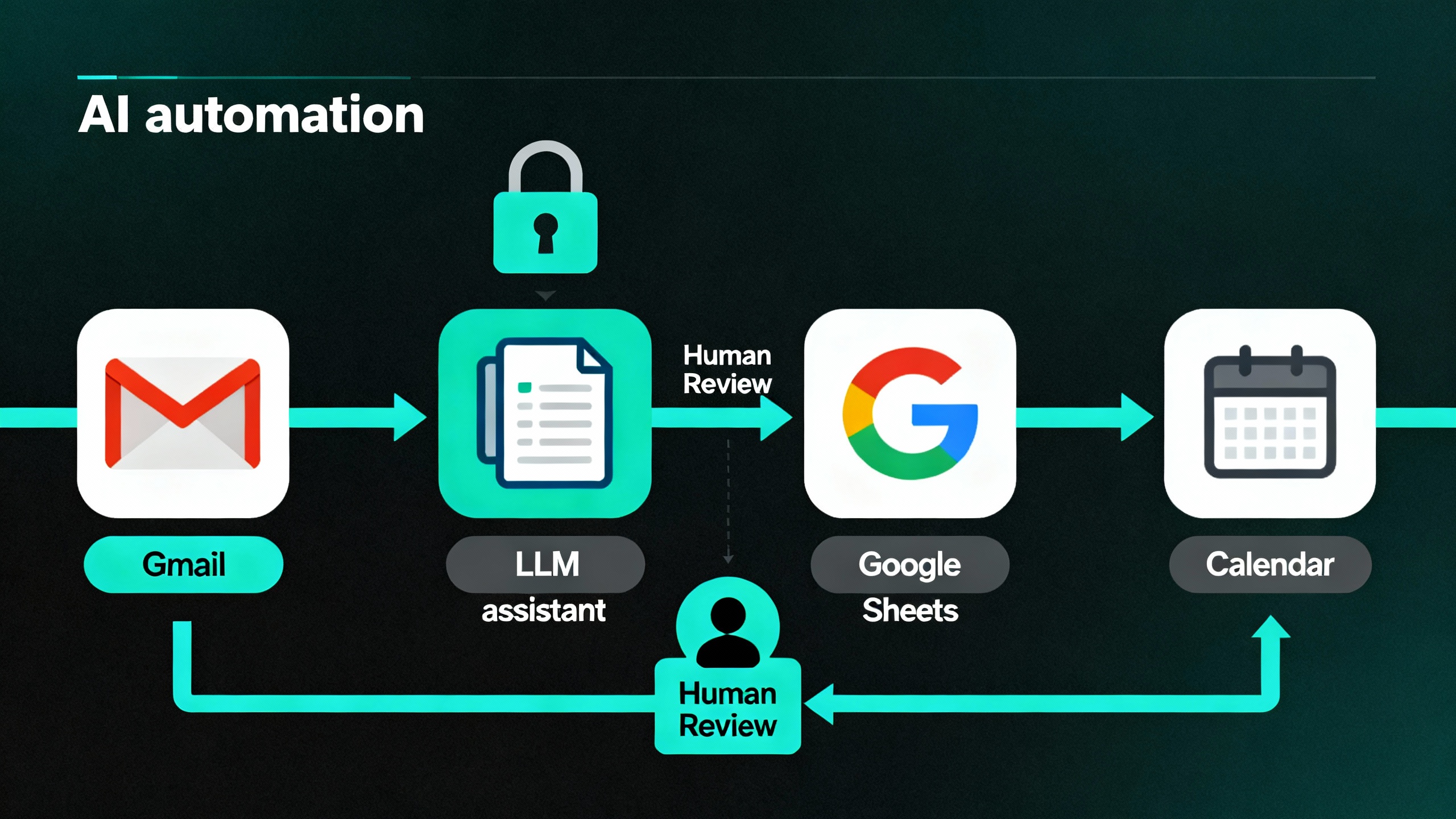
Keep a human-in-the-loop step for anything customer-facing or irreversible. Add approvals in your automation to pause and review before sending.
-
Step 7: Personal Admin Without the Mental Tax
Let AI plan a week of dinners from your pantry inventory, generate a shopping list, and send it to your phone. Use Apple Shortcuts (Support) or IFTTT for quick triggers like “When I say ‘commute,’ send my ETA to my partner.”
For travel, ask for a 2-day itinerary with walk times, opening hours, and one rain-friendly backup per day. For finances, summarize monthly expenses by category from exported CSVs, then flag anomalies for review.
-
Pro Tips and Common Mistakes
- Start tiny. Automate one task per week. Momentum beats overhaul.
- Measure results. Track time saved and error rate. If an automation causes rework, fix or retire it.
- Don’t over-trust drafts. AI writes confidently; you must read critically.
- Respect data boundaries. Separate personal and work accounts; keep sensitive docs out of public models.
- Version your prompts. When something works, save the exact wording and context so you can reuse it.
-
Wrap-Up: Your New Default Day
The goal isn’t to automate everything—it’s to automate the boring parts so your best work gets a larger share of your day. With a mapped routine, a single AI hub, a few well-placed automations, and sensible guardrails, you’ll feel the difference by next week. Start with one quick win today, review the result Friday, and compound from there. Your calendar—and your focus—will thank you.