


-
Introduction
Is AI a productivity tool? Yes—but only if it shows up where your work lives. That’s why we’re comparing two of the most important AI assistants embedded directly in the apps people already use: Microsoft Copilot for Microsoft 365 and Google Gemini for Workspace. We’ll break down how they help (or don’t) with writing, meetings, email, analysis, and workflow automation—then recommend the right fit for different teams.
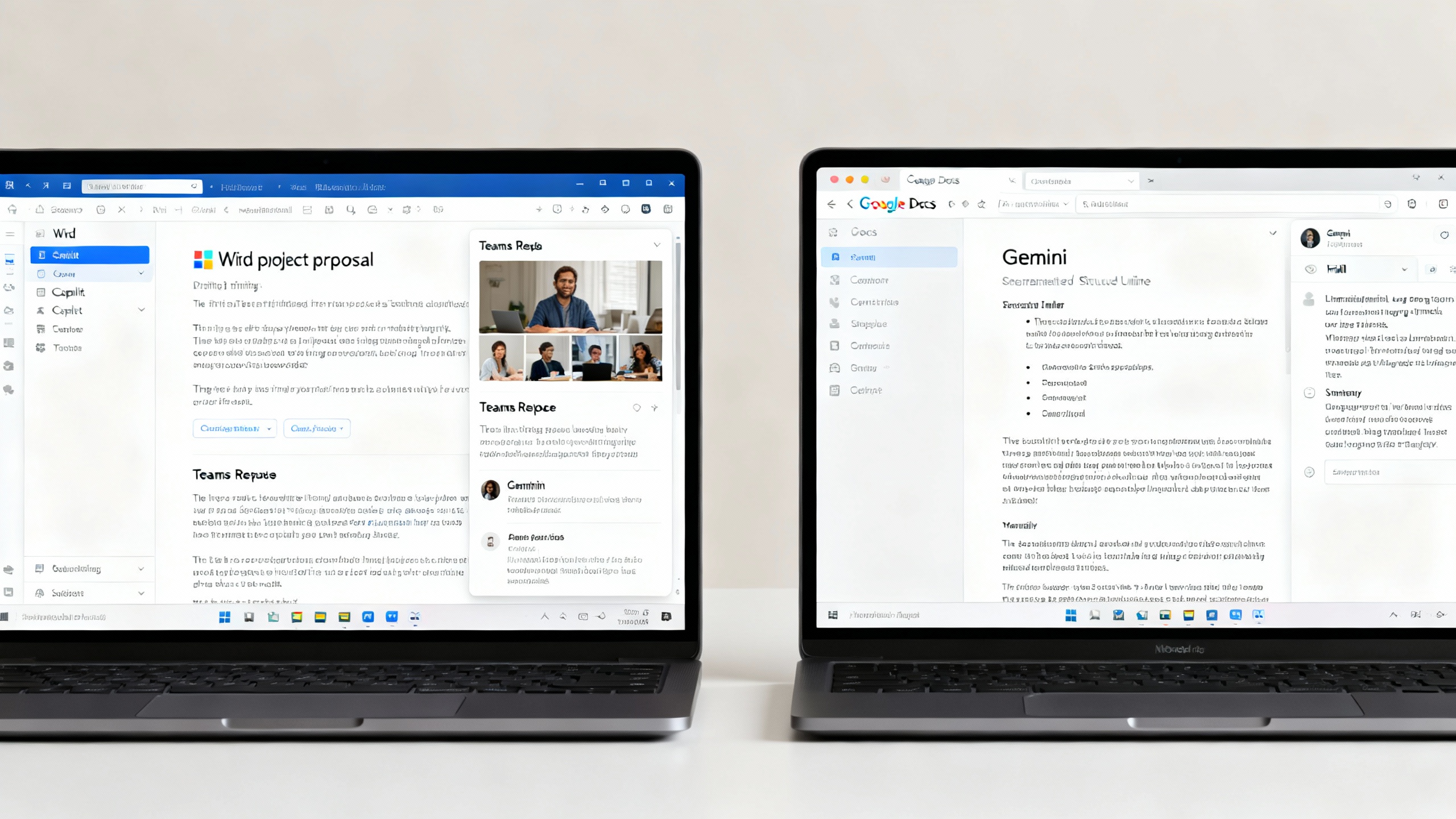
Research suggests well-designed AI assistants can meaningfully speed up knowledge work—one MIT/NBER study found a 37% improvement on certain writing and analysis tasks when participants used a general-purpose LLM.
-
Overview: What They Are and Who They’re For
Microsoft Copilot for Microsoft 365 embeds generative AI across Word, Excel, PowerPoint, Outlook, and Teams. It grounds responses in your Microsoft Graph data (emails, files, meetings) and offers enterprise-grade controls. It’s aimed at organizations standardized on Microsoft 365 that want AI woven into daily workflows. Learn more and see privacy details.
Google Gemini for Workspace (formerly Duet AI) integrates across Gmail, Docs, Sheets, Slides, and Meet, powered by the Gemini model family with strong long-context capabilities. It’s designed for teams on Google Workspace seeking AI assistance inside Google’s collaboration suite. Explore Gemini for Workspace and security posture.
-
Key Differences That Matter
1) Ecosystem depth and grounding
- Copilot leverages Microsoft Graph to pull context from emails, calendars, files, and chats in a privacy-respecting way. This grounding improves relevance for enterprise content—particularly in Outlook and Teams.
- Gemini pulls from Gmail, Drive, Calendar, and Meet, with strong real-time search and long-context summarization. Gemini 1.5 Pro’s extended context handling is a standout for large doc sets. Model overview.
2) Writing and email
- Copilot in Word/Outlook shines for structured drafting (RFPs, proposals) and triaging email based on meeting notes and documents inside M365.
- Gemini in Docs/Gmail is excellent for brainstorming, rewriting tone, and summarizing long threads from Drive and Gmail, with fluid “writer’s room” collaboration feel.
3) Meetings and notes
- Copilot for Teams offers robust meeting recaps, action extraction, and cross-reference with shared files. It aligns well with compliance logging via Purview.
- Gemini in Meet provides summaries and follow-ups; it’s strong at pulling highlights from Drive-linked materials and live captions, though enterprise governance is more Google Admin Console–centric than Microsoft Purview–centric.
4) Data security and compliance
- Microsoft: Deep integration with Purview for DLP, eDiscovery, retention, Sensitivity Labels, and audit. Customer data isn’t used to train foundation models by default. Details.
- Google: Strong native controls (DLP, context-aware access, client-side encryption options), with clear separation of customer data for model training. Security overview and client-side encryption.
5) Pricing and packaging
- Copilot: Typically an add-on for eligible Microsoft 365 plans. Enterprise pricing has been publicly listed around $30/user/month at times; check the latest Microsoft pricing page for your region and plan.[^pricing]
- Gemini: Offered as Business and Enterprise add-ons for Workspace; published pricing has ranged from ~$20 to ~$30/user/month depending on tier and features. See Workspace pricing.
6) Automation and extensibility
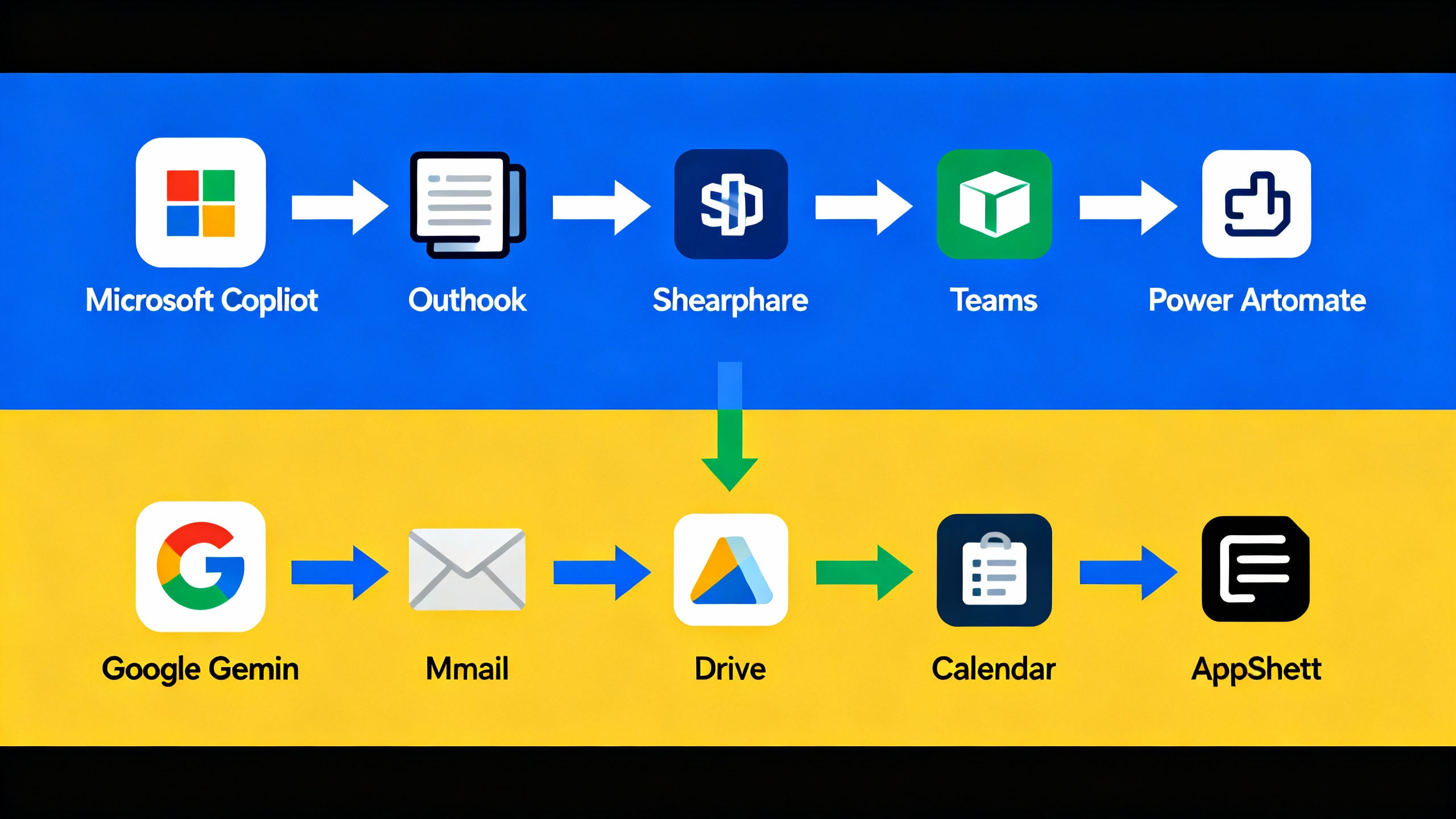
- Copilot + Power Platform: Power Automate, Power Apps, and Copilot Studio make it easier to turn prompts into repeatable workflows and custom copilots that tap Microsoft Graph and third-party systems. Power Automate.
- Gemini + Google ecosystem: AppSheet for no-code apps, Google Chat apps, and Gemini Extensions for Drive/Calendar/Meet. Strong for lightweight automations tied to Google services; deeper enterprise integrations may require Google Cloud/Vertex and partner apps.
TipPilot before you purchase
Run a 4-week pilot with two teams doing similar work—one on Copilot, one on Gemini. Track time-to-draft, email triage speed, meeting note accuracy, and how often outputs are used without major edits. This gives you a realistic baseline for ROI.
-
Pros and Cons
Microsoft Copilot for Microsoft 365
- Pros:
- Deep Graph grounding boosts relevance for enterprise content.
- Strong compliance story via Purview and Sensitivity Labels.
- Mature automation path with Power Automate and Copilot Studio.
- Excellent in Outlook/Teams for meeting and email workflows.
- Cons:
- Heaviest benefits accrue if your documents and chats already live in M365.
- Excel generative analysis is improving but still requires structured data and careful prompts.
- Can feel rigid outside the Microsoft ecosystem.
Google Gemini for Workspace
- Pros:
- Stellar long-context summarization in Docs/Drive with Gemini 1.5.
- Natural drafting and rewriting in Gmail/Docs with strong tone control.
- Smooth collaboration ethos fits teams that live in shared Docs.
- Client-side encryption options and simple admin for Google-native shops.
- Cons:
- Automation depth lags Power Platform for complex enterprise workflows.
- Governance features rely on Admin Console; advanced eDiscovery may need extra tooling.
- Strength outside Google ecosystem depends on third-party add-ons.
- Pros:
-
Use Case Recommendations
- If your org runs on Microsoft 365 with heavy Teams usage: Choose Copilot. Meeting recaps, action extraction, and email+calendar synergy are clear wins, and Power Automate scales small wins into big gains.
- If your org lives in Google Workspace with collaborative Docs/Drive culture: Choose Gemini. You’ll feel immediate lift in drafting, summarizing large doc sets, and streamlining Gmail.
- Regulated industries with strict compliance/eDiscovery: Slight edge to Copilot due to Purview depth and label-driven governance—assuming you already use those controls.
- Startups and creative teams: Gemini’s brainstorming and tone-shifting excel for early-stage, open-ended writing.
- Ops and back-office process teams: Copilot plus Power Automate can translate prompts into durable workflows across Outlook, SharePoint, and Dynamics.
-
Verdict
Both Copilot and Gemini can be genuine productivity tools when paired with your primary suite and real work artifacts. If you already pay for Microsoft 365, Copilot generally delivers a stronger end-to-end impact—especially when combined with Power Automate and Purview. If your team is natively on Google Workspace, Gemini is the obvious first pick, with standout long-context summarization and frictionless drafting.
Don’t switch suites just for the AI. Instead, pilot the assistant that matches your stack, instrument outcomes, and scale what works. In controlled studies, AI assistance often accelerates drafting and analysis; your goal is to translate those gains into repeatable workflows and policy-bound governance. See MIT/NBER’s evidence on knowledge worker uplift paper, and GitHub’s measured speed gains in coding contexts report.
At-a-glance comparison
| Factor | Microsoft Copilot for Microsoft 365 | Google Gemini for Workspace |
|---|---|---|
| Best for | Microsoft-centric enterprises | Google Workspace–native teams |
| Standout | Teams/Outlook grounding; Power Automate | Long-context summarization; Docs/Gmail drafting |
| Compliance | Purview, labels, eDiscovery depth | Admin Console, DLP, client-side encryption |
| Automation | Power Platform, Copilot Studio | AppSheet, Extensions, Marketplace add-ons |
| Pricing | Add-on; check enterprise page | Business/Enterprise add-ons |
In short: pick the assistant that sits where your work already happens—and invest in governance and automation to turn quick wins into systematic productivity.